


If your PC is lagging behind during work or gaming, you’re not alone. Performance bottlenecks can be frustrating, but upgrading your hardware can breathe new life into your system. By implementing the right upgrades, you can ensure smooth, efficient performance that meets your demands.
This list will guide you through the top ten hardware upgrades that can eliminate bottlenecks in your PC, enhance productivity, and improve your overall computing experience. Say goodbye to lag, and hello to speed!
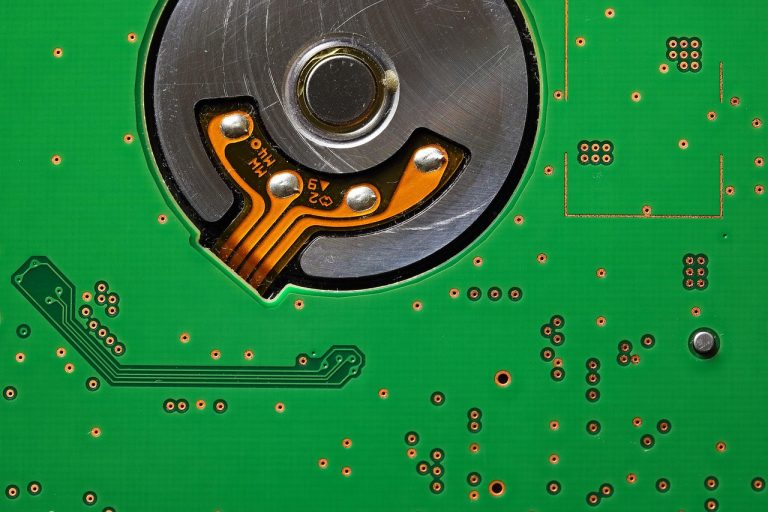
1. Solid State Drive (SSD) – Best for Speeding Up Boot Times
Upgrading to an SSD from a traditional hard drive can dramatically decrease load times and enhance your system’s overall responsiveness. You’ll notice the difference the minute you boot up your computer.
Key Features:
- Fast read/write speeds
- Durable and shock-resistant
- Lower power consumption
Pros:
- Significantly faster than HDDs
- Improves overall system performance
- Quiet and reliable operation
Cons:
- More expensive per GB than HDDs
- Limited write endurance
2. RAM Upgrade – Best for Multitasking
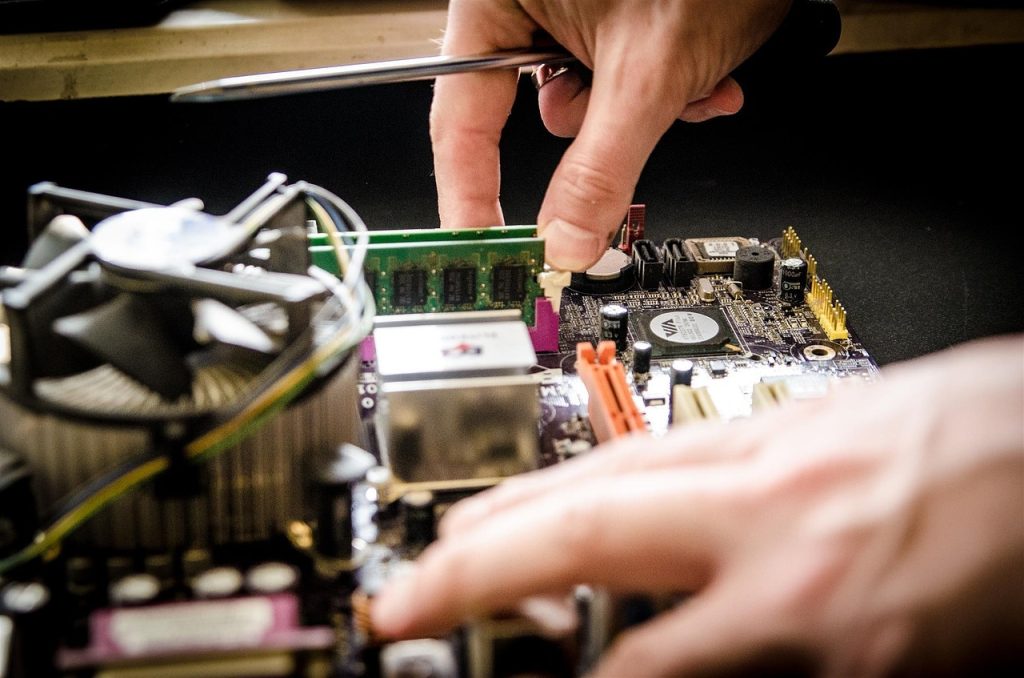
If your system struggles to run multiple applications, increasing your RAM can significantly improve your computer’s ability to multitask and speed up performance.
Key Features:
- Increased data access speed
- Supports more applications running simultaneously
- Easy installation process
Pros:
- Enhances overall productivity
- Improves gaming performance
- Reduces lag during heavy tasks
Cons:
- May require compatibility checks
- Higher RAM does not always translate to better performance with all tasks
3. Graphics Card (GPU) – Best for Gaming Performance
Upgrading your graphics card can result in significantly improved visual performance, especially for gaming or graphic design tasks. A better GPU will handle graphics-intensive applications much more efficiently.
Key Features:
- High-performance rendering capabilities
- Supports modern gaming technologies
- Dedicated video memory
Pros:
- Enhanced gaming experience
- More detailed graphics in applications
- Future-proofing for upcoming games/softwares
Cons:
- Can be expensive
- May require a more powerful power supply
4. Power Supply Unit (PSU) – Best for System Stability
A higher quality PSU ensures that all your components receive stable and sufficient power, preventing random shutdowns and extending the lifespan of your hardware.
Key Features:
- Efficient energy consumption
- Reliable performance under load
- Multiple safety features
Pros:
- Improves system stability
- Supports potential upgrades
- Durable and long-lasting
Cons:
- Higher cost for quality models
- Installation can be complex for beginners
5. Cooling System – Best for Thermal Management
An efficient cooling system, like an aftermarket CPU cooler or additional case fans, keeps your components at optimal temperatures, preventing throttling and extending lifespan.
Key Features:
- Improved airflow
- Quieter operation than stock coolers
- Effective temperature regulation
Pros:
- Optimal performance under load
- Extends hardware lifespan
- Reduces noise levels
Cons:
- Requires additional space in the case
- May add complexity to installation
6. Motherboard Upgrade – Best for Future-Proofing
Upgrading your motherboard can unlock more RAM slots, support newer CPU architectures, and offer advanced connectivity options, ensuring your system can grow with your needs.
Key Features:
- Compatibility with newer CPUs and RAM
- Enhanced connectivity (USB, PCI-E slots)
- Improved power delivery systems
Pros:
- Supports advanced features and technologies
- Allows for better performance optimization
- Future-proofing your system
Cons:
- Can be costly
- Installation can be complex
7. Sound Card – Best for Audio Quality
If you’re an audiophile or a gamer seeking immersive sound, upgrading your sound card can provide clearer audio and superior surround sound capabilities compared to onboard options.
Key Features:
- High-definition audio output
- Multiple audio enhancement features
- Support for surround sound
Pros:
- Significantly better sound quality
- Enhanced gaming and movie experience
- Customizable audio settings
Cons:
- Not necessary for casual users
- May require software installation
8. Network Card – Best for Internet Connectivity
If you’re experiencing slow internet speeds or connectivity issues, upgrading to a high-performance network card can improve your wireless signal and data transfer rates.
Key Features:
- Supports multiple bands (2.4GHz and 5GHz)
- Enhanced range and speed capabilities
- Compatibility with Wi-Fi 6 technology
Pros:
- Improves online gaming experience
- Better streaming capabilities
- Reduced latency in internet-dependent tasks
Cons:
- Additional cost for higher-end models
- Installation may take time
9. Case Fans – Best for Enhanced Airflow
Adding or upgrading case fans can significantly improve the airflow inside your PC case, leading to lower temperatures and better overall performance.
Key Features:
- Variety of sizes and styles
- Adjustable fan speeds
- Quiet operation options
Pros:
- Enhances thermal management
- Improves component lifespan
- Simple installation process
Cons:
- May add noise if not chosen wisely
- Requires proper placement for maximum effectiveness
10. M.2 NVMe Drive – Best for High-Speed Data Transfer
If your motherboard supports it, upgrading to an M.2 NVMe drive can provide lightning-fast data transfer speeds, making your applications load almost instantaneously.
Key Features:
- Ultra-high transfer speeds compared to SATA SSDs
- Compact form factor
- Direct connection to the motherboard
Pros:
- Significantly faster application load times
- Enhanced gaming experience
- Great for heavy data workloads
Cons:
- Can be more expensive than SATA SSDs
- Compatibility limitations with older motherboards
How to Choose the Right Upgrade for Your Needs
When considering hardware upgrades for your PC, start by identifying the bottlenecks that are affecting your performance. Look for symptoms like slow boot times, lag during multitasking, or stuttering in games. Set a budget and prioritize upgrades that will provide the most noticeable improvements based on your usage, whether that’s gaming, graphic design, or simple day-to-day tasks.
#PCUpgrades #GamingSetup #TechTips #ComputerPerformance #Hardware #Efficiency #DIYTech #PCBuilding